CLI
Some debts from before https://lifeodyssey.github.io/posts/fe4ef317.html And Git operations I’m not so familiar with
Git
Git Local
git init
ls -Force(ls -a)
git status
New-item(touch) file.txt -Type file
git status
git add .(\filename)
git status
git commit -m '[My name] What I have done'
git status
git log

vim file.txt
git status

git diff

git add .
git commit -m ' '

git log

git checkout .(filename,wildcard )## Undo, return to last commit

git log# see hash code

git checkout hashcode# jump to certain commit

vim file

git add .
git checkout -b another_branch

git commit -m ' '
git log

git checkout branch_name

git merge another_branch# at master branch

git status# find conflict
vim file## <<<<HEAD(Change in current branch)
#changes
#===
#changes
#>>>>another_branch(Changes to be merged)
# Modify the conflict manually
git add .
git commit -m ' '

git log
git remote
git clone
git remote -v
## make some change
git status
git push -u origin master
git status
Other Resources
- See the
Supplementary Materialssection in git-101-handbook.pdf. - Git Command Cheat Sheet
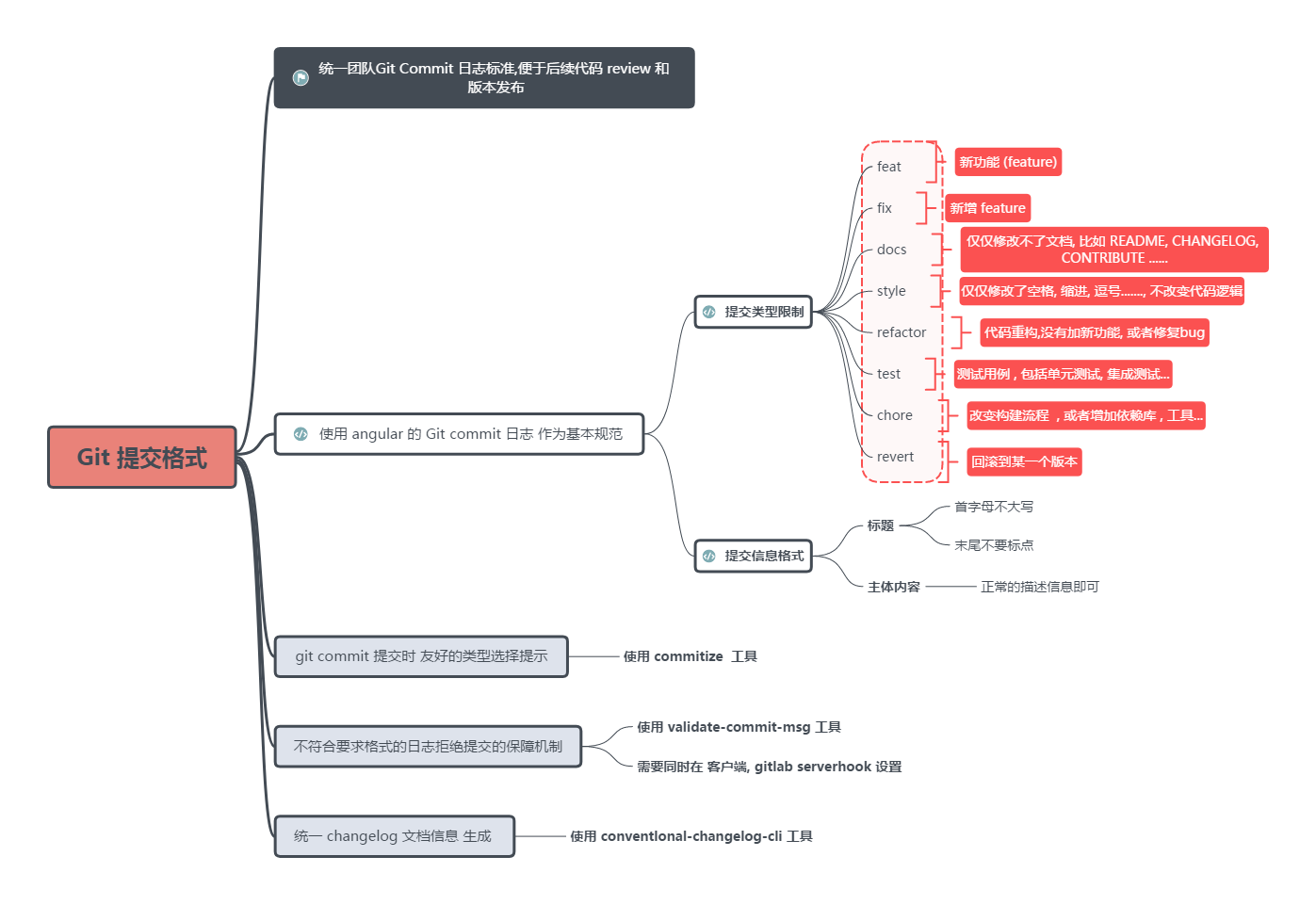
- Git Commit Message Recommended Conventions
Commit format: https://feflowjs.com/zh/guide/rule-git-commit.html
CLI
Understanding Linux
Linux Essentials - Beginner Crash Course (Ubuntu)
Basic Command
pwd #show current path
cd /
cd ..
cd .
ls
ls -a

sudo apt updaate
sudo apt list --upgradable
sudo apt upgrade

sudo apt search vlc
sudo apt install vlc
sudo apt remove vlc
sudo apt autoremove
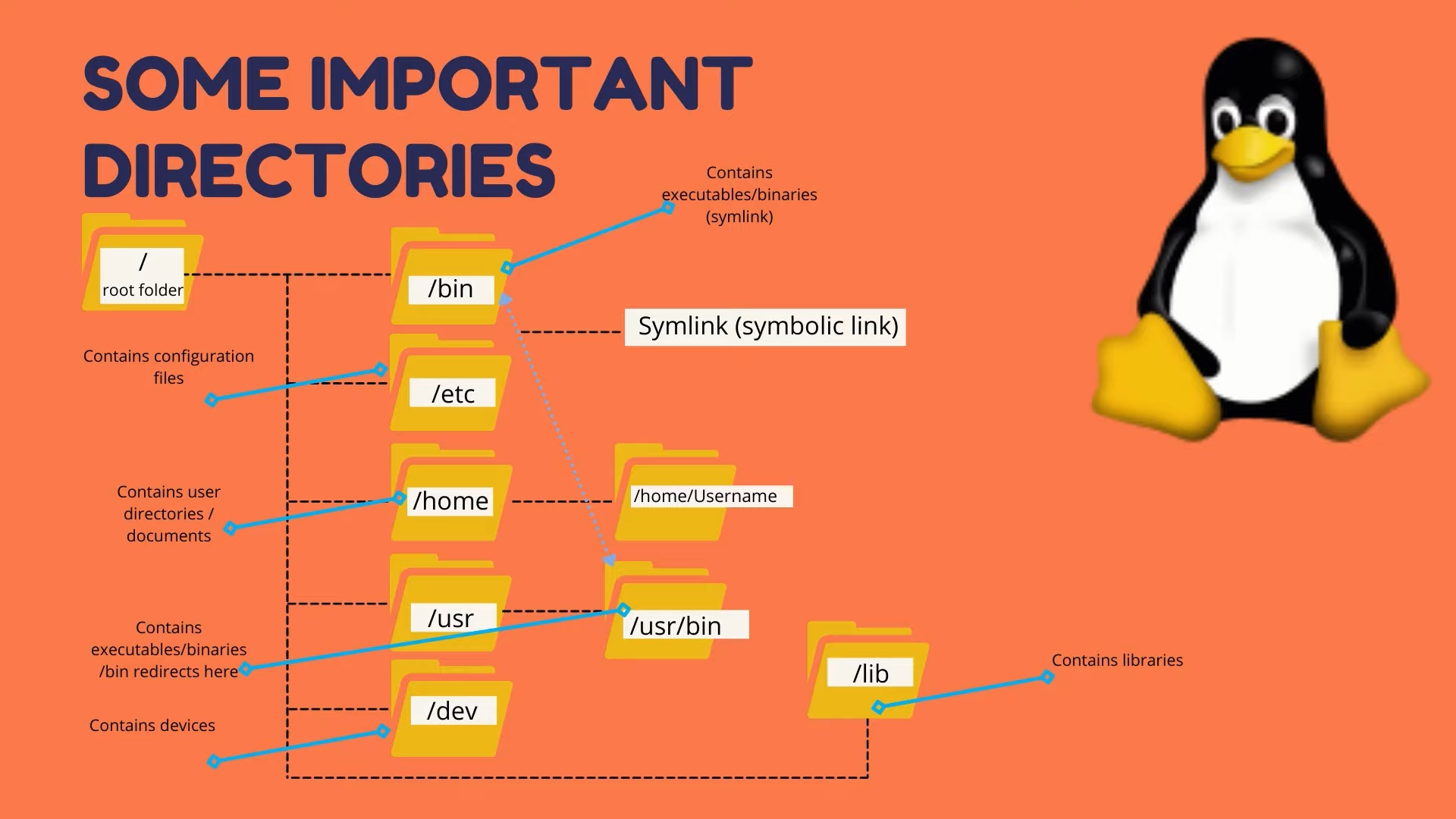
Linux File system
pwd
ls
cd Doc
touch testfile
mkdir testdir
cp testfile testdir#copy
cp testfile testdir/testfile2
cp testfile /home/specificpath
cp testfile ../testfile5#current path
rm restfile
rm -r testdir
rm *
vim testfile.txt


man ls#list manual
ls --help

find Documents
ls | grep Doc

ls >> output.txt
cat output.txt

echo "hello world"
echo "hello world" | >> output.txt
tail output.txt
head output.txt
Shell variables
echo $USER

alias showuser='echo $USER'
showuser
export linuxcourse='for beginners'
echo $linuxcourse
ls -a
vim .bashrc
# Then you can set the variable permanently
# This is the way to set environment variables
Basic Command Line
Linux Tutorial - Basic Command Line
pwd
ls -a
ls -l
mkdir dir1
mkdir dir2
cd dir1
pwd
cd ..
cd /
ls
cd
cd ~
clear

touch file1.txt
cp file dir
rm file
rm -r dir

which mongod#find the location
history

clear

sudo
ifconfig
iwconfig
ping google.com

uname -a

blkid

top

df
ls USB

sudo apt-get install...
A basic shell script
#!/bin/bash
#tell the interpreter
Shell Variable
For this part, I directly used this resource
After looking at it for a while, I found that I like this resource the most: https://learnxinyminutes.com/docs/bash/
Some Other Things
./shell.sh->shell.sh
You need to modify the path variable
One way is to add the current path:
export PATH="$PWD:$PATH"Another way is to install the command to the system folder
Usually placed in usr/local/bin
One way is to directly cp, but you need to link it after each update
Another way is to create a link, which is like creating a shortcut:
ln -s $PWD/topc /usr/local/bin/#yCommon Commands
declare
cat
cut
sort
uniq
sed+regex
ctrl R
grep
awk
Bash Return Values
The if statement in bash shell runs the command after if. If the exit status code of that command is 0 (the command ran successfully), the commands in the then section will be executed. If the exit status code is any other value, the commands in the then section will not be executed. The fi statement indicates the end of the if-then statement.
The bash shell executes if statements in order, and only the then section of the first statement that returns exit status code 0 will be executed.
The shell script matches from top to bottom for statements where the condition after if is 0 or true, then executes the command after then.
So if you don’t add exit 1, it will still match the child command later.
After adding exit 1, it will exit the bash script here and won’t match the child command anymore.
Shift and $1
$# is the total number of parameters
$0 is the script name
$1 is the first parameter
$2 is the second parameter
And so on
$@ is all parameters
Shift: Shift the parameter variables once Shift n: Shift the parameter variables n times # Some Other Resources Syntax quick reference: [Learn X=bash in Y minutes](https://learnxinyminutes.com/docs/bash/) A Chinese quick reference e-book: [Linux Tools Quick Tutorial](https://linuxtools-rst.readthedocs.io/zh_CN/latest/base/index.html), if needed, you can learn the following sections: Linux Basics 1. [Learn to Use Command Help](https://linuxtools-rst.readthedocs.io/zh_CN/latest/base/01_use_man.html) 2. [File and Directory Management](https://linuxtools-rst.readthedocs.io/zh_CN/latest/base/02_file_manage.html) 3. [Text Processing](https://linuxtools-rst.readthedocs.io/zh_CN/latest/base/03_text_processing.html) 4. [User Management Tools](https://linuxtools-rst.readthedocs.io/zh_CN/latest/base/08_user_manage.html) An article on Zhihu with many recommended resources: [Is there a better book for learning Linux than "The Linux Command Line"?](https://www.zhihu.com/question/30328004) A very practical video tutorial series, suitable for learning on your phone during fragmented time: [2021 Latest Linux Quick Start Tutorial](https://www.ixigua.com/6912756486275858948) Want to learn about Shell scripting conventions? Just look at this: [Google Shell Style Guide](https://google.github.io/styleguide/shellguide.html) If you don't understand some complex commands during learning, let it explain to you first. [explainshell.com - match command-line arguments to their help text](https://explainshell.com/) Advice for beginners: [Beginner Mistakes](https://wiki.bash-hackers.org/scripting/newbie_traps) # The Missing Semester of CS Lecture 1 I only noted the parts I'm not familiar with redirection ```shell $echo hello > hello.txt# print hello to hello. $cat hello.txt hello $cat < hello.txt hello $cat < hello.txt > hello2.txt $cat hello2.txt hello ```