WSL+anaconda+jupyter
I used to frequently use autosklearn, but it doesn’t run on Windows. I originally wanted to install Ubuntu like before, but it felt too troublesome, so I tried using WSL. Here’s the complete configuration process.
WSL
Open cmd with administrator privileges and enter:
$ wsl --installAfter restarting, download Ubuntu from the MS Store. I downloaded Ubuntu 20.04 LTS.
Then just type wsl in the command line to get started.
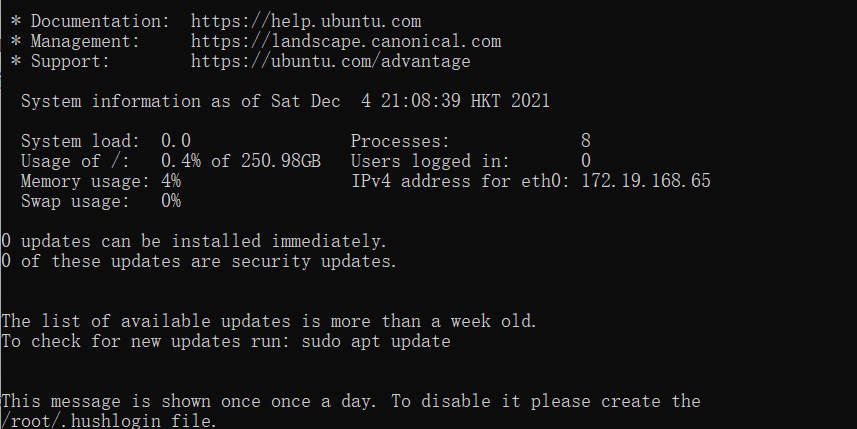
Note that this is installed on the C drive by default.
Here’s a reference for common Ubuntu commands.
anaconda
I installed miniconda here since I don’t need that many packages.
Commands are as follows:
$ mkdir -p miniconda
$ cd miniconda
$ wget https://repo.anaconda.com/miniconda/Miniconda3-latest-Linux-x86_64.sh
Then I got stuck at this step and couldn’t get past it for a long time.
I had to download miniconda from the Tsinghua mirror instead. Note to download the py37 version, then copy it directly to the miniconda folder. The file directory is usually c/users/username/miniconda
Then:
$ bash Miniconda.... .sh
$ conda create --name pysoc python=3.7
$ conda activate pysoc
Then comes the essential step for users in China - switching to Tsinghua mirror.
Interlude
Before that, there was a small interlude.
I wanted to use reboot to restart directly, but it didn’t work, showing:
$ System has not been booted with systemd as init
$ system (PID 1). Can't operate.
$ Failed to connect to bus: Host is down
$ Failed to talk to init daemon.
I searched a lot, and although I didn’t understand what the problem was exactly, I finally solved it like this:
$ sudo -s
$ wget -q https://packages.microsoft.com/config/ubuntu/20.04/packages-microsoft-prod.deb -O packages-microsoft-prod.deb
$ sudo dpkg -i packages-microsoft-prod.deb
$ sudo apt-get update
$ apt search dotnet-sdk
This is to solve the “Unable to locate package dotnet-sdk” error that occurs when installing dotnet-sdk directly.
Then continue:
$ sudo apt install -y daemonize dbus dotnet-runtime-5.0 gawk libc6 libstdc++6 policykit-1 systemd systemd-container
Install some necessary modules:
$ sudo apt install apt-transport-https

$ sudo wget -O /etc/apt/trusted.gpg.d/wsl-transdebian.gpg https://arkane-systems.github.io/wsl-transdebian/apt/wsl-transdebian.gpg

$ sudo chmod a+r /etc/apt/trusted.gpg.d/wsl-transdebian.gpg

$ sudo cat << EOF > /etc/apt/sources.list.d/wsl-transdebian.list
deb https://arkane-systems.github.io/wsl-transdebian/apt/ $(lsb_release -cs) main
deb-src https://arkane-systems.github.io/wsl-transdebian/apt/ $(lsb_release -cs) main
EOF

$ sudo apt update
Set up the wsl-transdebian repo.
$ sudo apt install -y systemd-genie
$ genie -i
$ genie -s
$ genie -l
Install and use genie.
Then it crashed successfully.
After checking, the reason is:
So why don’t normal
reboot/shutdowncommands work? Two reasons. First, as covered by Bengt, WSL doesn’t currently support systemd, and Ubuntu simply links these two legacy commands to/usr/bin/systemctl(the systemd control utility). You can see this withls -l /usr/sbin.But even if these were the legacy commands which directly called Linux’s shutdown API, it wouldn’t work. Microsoft doesn’t typically hook up API’s that interact directly with the hardware, instead providing virtualization interfaces where necessary. But in the case of starting and stopping a WSL instance, it’s just so “lightweight” (as discussed above) that there’s not any real reason to do so.
In the end, I had to open another cmd:
$ wsl --list
$ wsl --terminate Ubuntu
#or wsl shutdown to shut all the sub system
After restarting and entering, if you see “base” in front, it means you’ve entered the conda environment.
Changing Sources
$ conda config --add channels 'https://mirrors.tuna.tsinghua.edu.cn/anaconda/pkgs/free/'
$ conda config --set show_channel_urls yes
Setting Up Environment
$ conda create --name pysoc python=3.7
$ conda activate pysoc
Never, never, never run or install things in the base environment!
Classic package installation time:
$ conda install gxx_linux-64 gcc_linux-64 swig
$ conda config --add channels conda-forge
$ conda config --set channel_priority strict
$ conda install auto-sklearn
$ conda install -c conda-forge geopandas
Then it crashed again successfully.

I tried deleting and recreating the environment but it didn’t work. No choice but to reinstall the system.
Just open Ubuntu’s settings and click reset.

After reinstalling, do it all over again, but this time without installing the genie package related to reboot.
This time it didn’t crash. After installing the above two packages, continue:
$ conda install seaborn
$ conda install -c conda-forge xarray dask netCDF4 bottleneck
$ conda install -c conda-forge cartopy
$ conda install -c conda-forge pyresample
$ conda install python-ternary
These seem to be the commonly used ones. If anything is missing, I’ll try again later.
Jupyter
$ pip install jupyterlab
$ conda install -c conda-forge nodejs
$ conda install -c conda-forge python-lsp-server r-languageserver
$ jupyter labextension install @jupyterlab/toc
$ conda install -c conda-forge jupyterlab-drawio
$ pip install jupyterlab_latex
$ pip install lckr-jupyterlab-variableinspector
$ conda install -c conda-forge jupyterlab_execute_time
$ conda install ipykernel
$ jupyter lab build
$ jupyter labextension enable all
$ python -m ipykernel install --name acolite
You can refer to this article I wrote before.
Then just type jupyter lab to start.
Since a lot of information might flash by, jumping to the next page in cmd, making it impossible to see the token, you can press ctrl+c, and the token will appear. Copy it to the browser.
Since my git cloned repo is also on the C drive, I can just open and use the jupyterlab I wrote before.
It took me about seven or eight hours in total, most of which was because I wanted to set up reboot. Without that, it would have been done in about four hours.
Note that the access path changes to /mnt/c(defgh…)
Another Crash
When I tried to import autosklearn in jupyter, it showed that autosklearn was not found. It turns out the conda command didn’t install it.
I tried installing it again, and I found that geopandas and autosklearn have conflicts. I was speechless.
Finally, I used:
$ pip3 install auto-sklearnAnd it was done.
Also note that some keywords in autosklearn now (2021.12.5) are different from what I used during my undergraduate studies. Just be aware of that.
CPU and memory limit
After running for a day, I found that the results still hadn’t come out. When I refreshed, it showed “kernel seems to die.”
After checking, it was because the allocated memory was not enough.
$ wsl --shutdown
$ notepad "$env:USERPROFILE/.wslconfig"
Write:
[wsl2] memory=3GB # Limits VM memory in WSL 2 up to 3GB processors=4 # Makes the WSL 2 VM use two virtual processors
Write whatever amount you want.
You can use free -h in wsl to see the memory allocation.
A Bug
Recently I encountered a problem where external hard drives couldn’t be recognized.
It kept showing “No such device.”
Then I found this.
It’s really a treasure! Go bookmark it now.
Although this problem is different from what I encountered.
Password Reset
https://zikin.org/wsl-forgot-passwd/
https://raw.githubusercontent.com/acolite/acolite_luts/main/ACOLITE-LUT-202110-Reverse/L8_OLI/ACOLITE-LUT-202110-MOD2-reverse-L8_OLI-romix-8.ncwin x A
powershell Admin
wsl -u root
passwd root
passwd zikin