CLI
以前からの借りを返す https://lifeodyssey.github.io/posts/fe4ef317.html そしてあまり慣れていないGitの操作
Git
Git Local
git init
ls -Force(ls -a)
git status
New-item(touch) file.txt -Type file
git status
git add .(\filename)
git status
git commit -m '[My name] What I have done'
git status
git log

vim file.txt
git status

git diff

git add .
git commit -m ' '

git log

git checkout .(filename,wildcard )## 取り消し、前回のコミットに戻る

git log# see hash code

git checkout hashcode# jump to certain commit

vim file

git add .
git checkout -b another_branch

git commit -m ' '
git log

git checkout branch_name

git merge another_branch# at master branch

git status# find conflict
vim file## <<<<HEAD(Change in current branch)
#changes
#===
#changes
#>>>>another_branch(Changes to be merged)
# コンフリクトを手動で修正
git add .
git commit -m ' '

git log
git remote
git clone
git remote -v
## make some change
git status
git push -u origin master
git status
その他の資料
- git-101-handbook.pdfの
補足資料セクションを参照。 - Git コマンドチートシート
- Git コミットメッセージ推奨規約
コミット形式:https://feflowjs.com/zh/guide/rule-git-commit.html
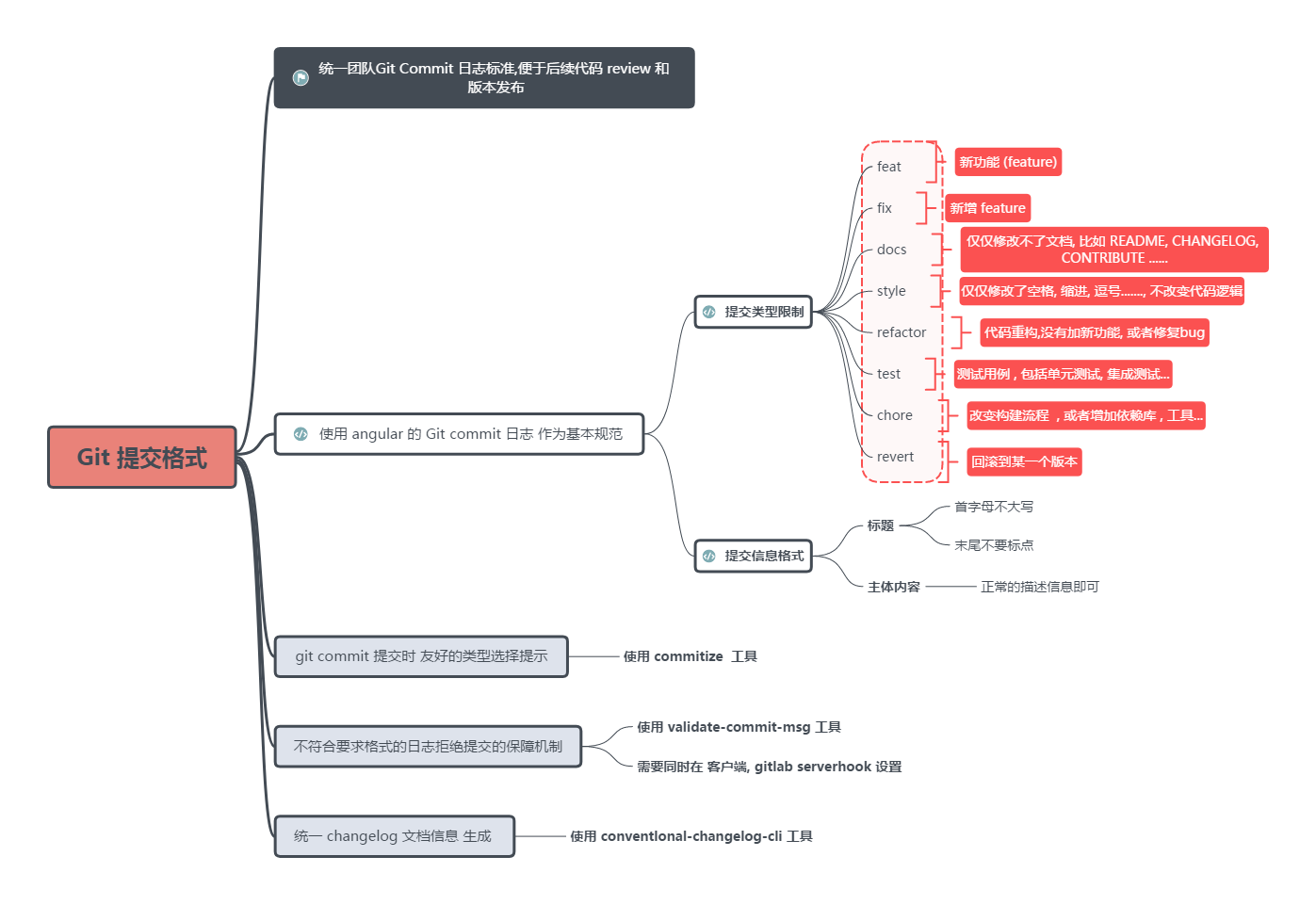
CLI
Linuxを理解する
Linux Essentials - Beginner Crash Course (Ubuntu)
Basic Command
pwd #show current path
cd /
cd ..
cd .
ls
ls -a

sudo apt updaate
sudo apt list --upgradable
sudo apt upgrade

sudo apt search vlc
sudo apt install vlc
sudo apt remove vlc
sudo apt autoremove
Linux File system
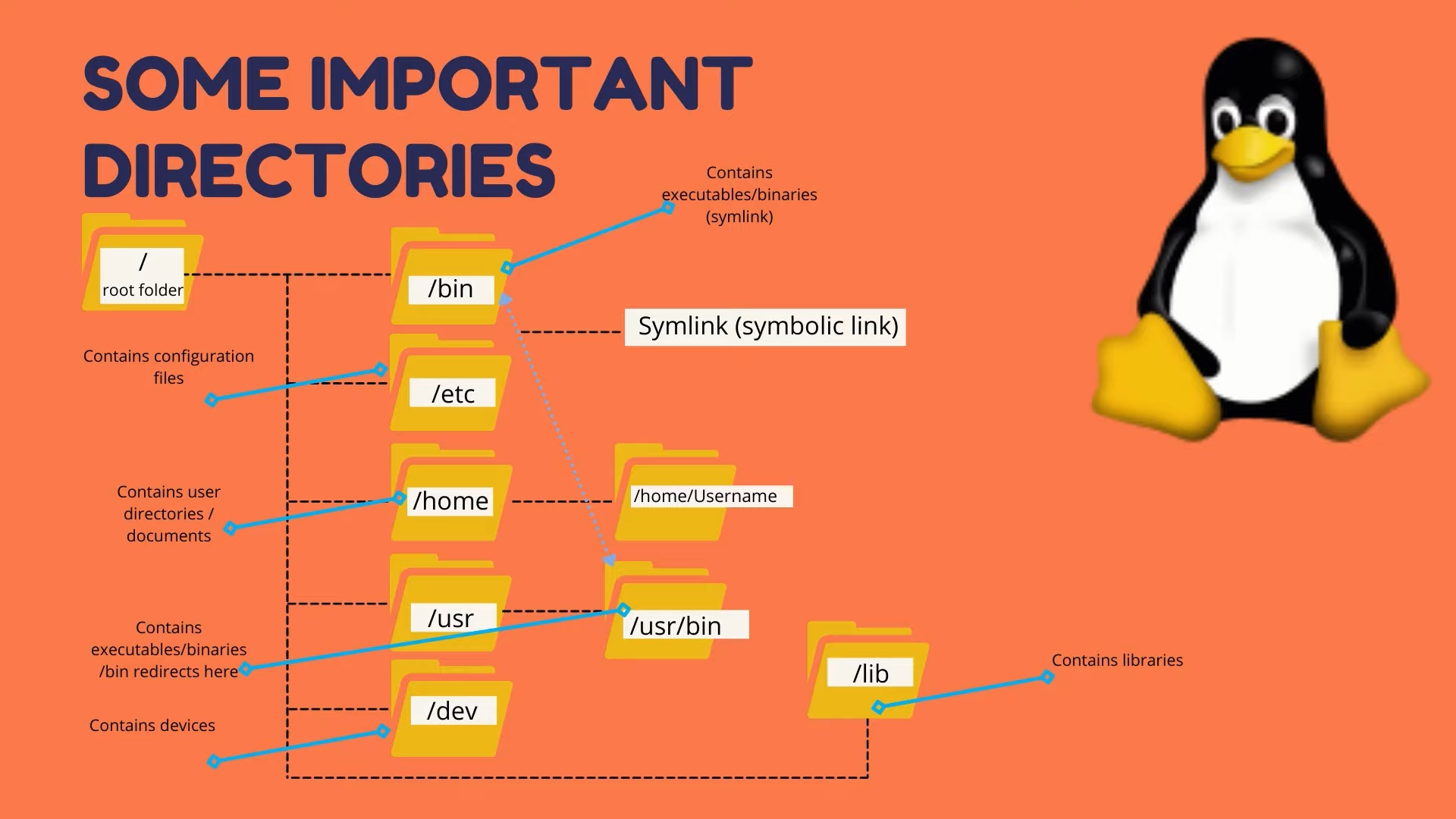
pwd
ls
cd Doc
touch testfile
mkdir testdir
cp testfile testdir#copy
cp testfile testdir/testfile2
cp testfile /home/specificpath
cp testfile ../testfile5#current path
rm restfile
rm -r testdir
rm *
vim testfile.txt


man ls#list manual
ls --help

find Documents
ls | grep Doc

ls >> output.txt
cat output.txt

echo "hello world"
echo "hello world" | >> output.txt
tail output.txt
head output.txt
Shell variables
echo $USER

alias showuser='echo $USER'
showuser
export linuxcourse='for beginners'
echo $linuxcourse
ls -a
vim .bashrc
# Then you can set the variable permanently
# This is the way to set environment variables
Basic Command Line
Linux Tutorial - Basic Command Line
pwd
ls -a
ls -l
mkdir dir1
mkdir dir2
cd dir1
pwd
cd ..
cd /
ls
cd
cd ~
clear

touch file1.txt
cp file dir
rm file
rm -r dir

which mongod#find the location
history

clear

sudo
ifconfig
iwconfig
ping google.com

uname -a

blkid

top

df
ls USB

sudo apt-get install...
A basic shell script
#!/bin/bash
#tell the interpreter
Shell Variable
この部分は直接ここを使いました
しばらく見た後、この資料が一番好きだと気づきました:https://learnxinyminutes.com/docs/bash/
その他
./shell.sh->shell.sh
path変数を修正する必要があります
一つは現在のパスを追加する方法:
export PATH="$PWD:$PATH"もう一つはコマンドをシステムフォルダにインストールする方法
通常はusr/local/binに配置します
一つは直接cpする方法ですが、更新のたびにリンクする必要があります
もう一つはリンクを作成する方法で、ショートカットを作成するようなものです:
ln -s $PWD/topc /usr/local/bin/#yよく使うコマンド
declare
cat
cut
sort
uniq
sed+正規表現
ctrl R
grep
awk
Bashの戻り値
bash shellのif文はifの後のコマンドを実行します。そのコマンドの終了ステータスコードが0(コマンドが正常に実行された)の場合、then部分のコマンドが実行されます。終了ステータスコードが他の値の場合、then部分のコマンドは実行されません。 fi文はif-then文の終了を示します。
bash shellはif文を順番に実行し、最初に終了ステータスコード0を返す文のthen部分のみが実行されます。
シェルスクリプトは上から下へ順番にifの後の条件が0または真の文をマッチングし、thenの後のコマンドを実行します。
したがって、exit 1を追加しないと、後のchild commandにもマッチングされます。
exit 1を追加すると、ここでbashスクリプトを終了し、child commandにはマッチングされなくなります。
Shiftと$1
$#はすべてのパラメータの数
$0はスクリプトの名前
$1は最初のパラメータ
$2は2番目のパラメータ
以下同様
$@はすべてのパラメータ
Shift:パラメータ変数を1回シフトする Shift n:パラメータ変数をn回シフトする # その他の資料 構文クイックリファレンス:[Learn X=bash in Y minutes](https://learnxinyminutes.com/docs/bash/) 中国語のクイックリファレンス電子書籍:[Linux Tools Quick Tutorial](https://linuxtools-rst.readthedocs.io/zh_CN/latest/base/index.html)、必要に応じて以下のセクションを学習できます: Linux基礎 1. [コマンドヘルプの使い方を学ぶ](https://linuxtools-rst.readthedocs.io/zh_CN/latest/base/01_use_man.html) 2. [ファイルとディレクトリ管理](https://linuxtools-rst.readthedocs.io/zh_CN/latest/base/02_file_manage.html) 3. [テキスト処理](https://linuxtools-rst.readthedocs.io/zh_CN/latest/base/03_text_processing.html) 4. [ユーザー管理ツール](https://linuxtools-rst.readthedocs.io/zh_CN/latest/base/08_user_manage.html) 知乎の記事、多くの推奨リソースがあります: [Linuxを学ぶのに「鳥哥のLinux私房菜」より良い本はありますか?](https://www.zhihu.com/question/30328004) とても実用的なビデオチュートリアルシリーズ、スマホで隙間時間に学習するのに適しています: [2021年最新Linux極速入門チュートリアル](https://www.ixigua.com/6912756486275858948) Shellスクリプトの規約について知りたいですか?これを見てください: [Google Shell Style Guide](https://google.github.io/styleguide/shellguide.html) 学習中に複雑なコマンドがわからない場合は、まず説明してもらいましょう。 [explainshell.com - match command-line arguments to their help text](https://explainshell.com/) 初心者へのアドバイス:[Beginner Mistakes](https://wiki.bash-hackers.org/scripting/newbie_traps) # The Missing Semester of CS Lecture 1 慣れていない部分だけメモしました redirection ```shell $echo hello > hello.txt# print hello to hello. $cat hello.txt hello $cat < hello.txt hello $cat < hello.txt > hello2.txt $cat hello2.txt hello ```