CLI
6 min
一些之前欠下的债 https://lifeodyssey.github.io/posts/fe4ef317.html 还有没那么熟悉的Git的操作
Git
Git Local
git init
ls -Force(ls -a)
git status
New-item(touch) file.txt -Type file
git status
git add .(\filename)
git status
git commit -m '[My name] What I have done'
git status
git log

vim file.txt
git status

git diff

git add .
git commit -m ' '

git log

git checkout .(filename,wildcard )##撤销,回到上一次提交

git log# see hash code

git checkout hashcode# jump to certain commit

vim file

git add .
git checkout -b another_branch

git commit -m ' '
git log

git checkout branch_name

git merge another_branch# at master branch

git status# find conflict
vim file## <<<<HEAD(Change in current branch)
#changes
#===
#changes
#>>>>another_branch(Changes to be merged)
# Modify the confilct manually
git add .
git commit -m ' '

git log
git remote
在
git clone
git remote -v
## make some change
git status
git push -u origin master
git status
其他资料
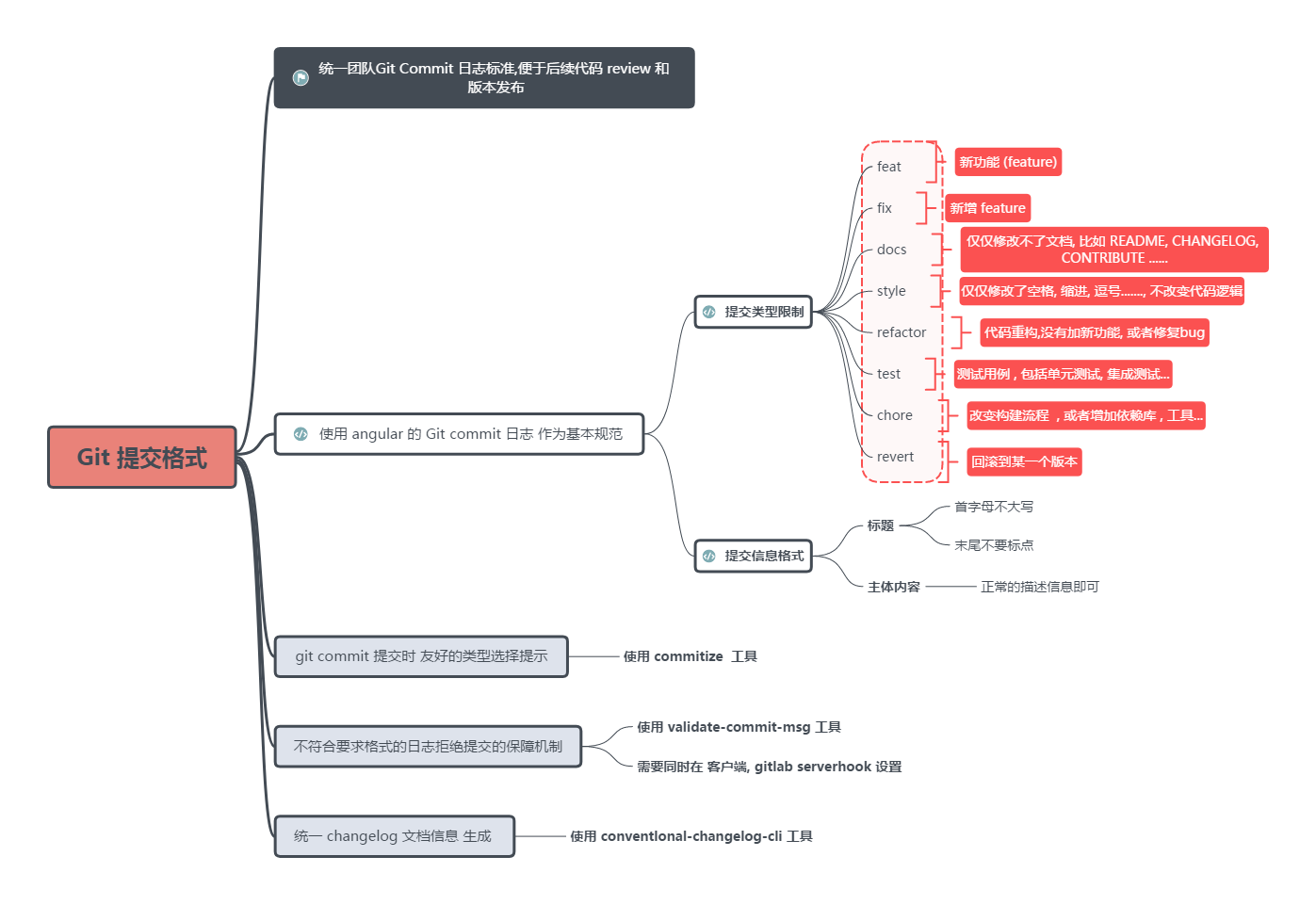
提交格式https://feflowjs.com/zh/guide/rule-git-commit.html
CLI
了解Linux
Linux Essentials - Beginner Crash Course (Ubuntu)
Basic Command
pwd #show current path
cd /
cd ..
cd .
ls
ls -a

sudo apt updaate
sudo apt list --upgradable
sudo apt upgrade

sudo apt search vlc
sudo apt install vlc
sudo apt remove vlc
sudo apt autoremove
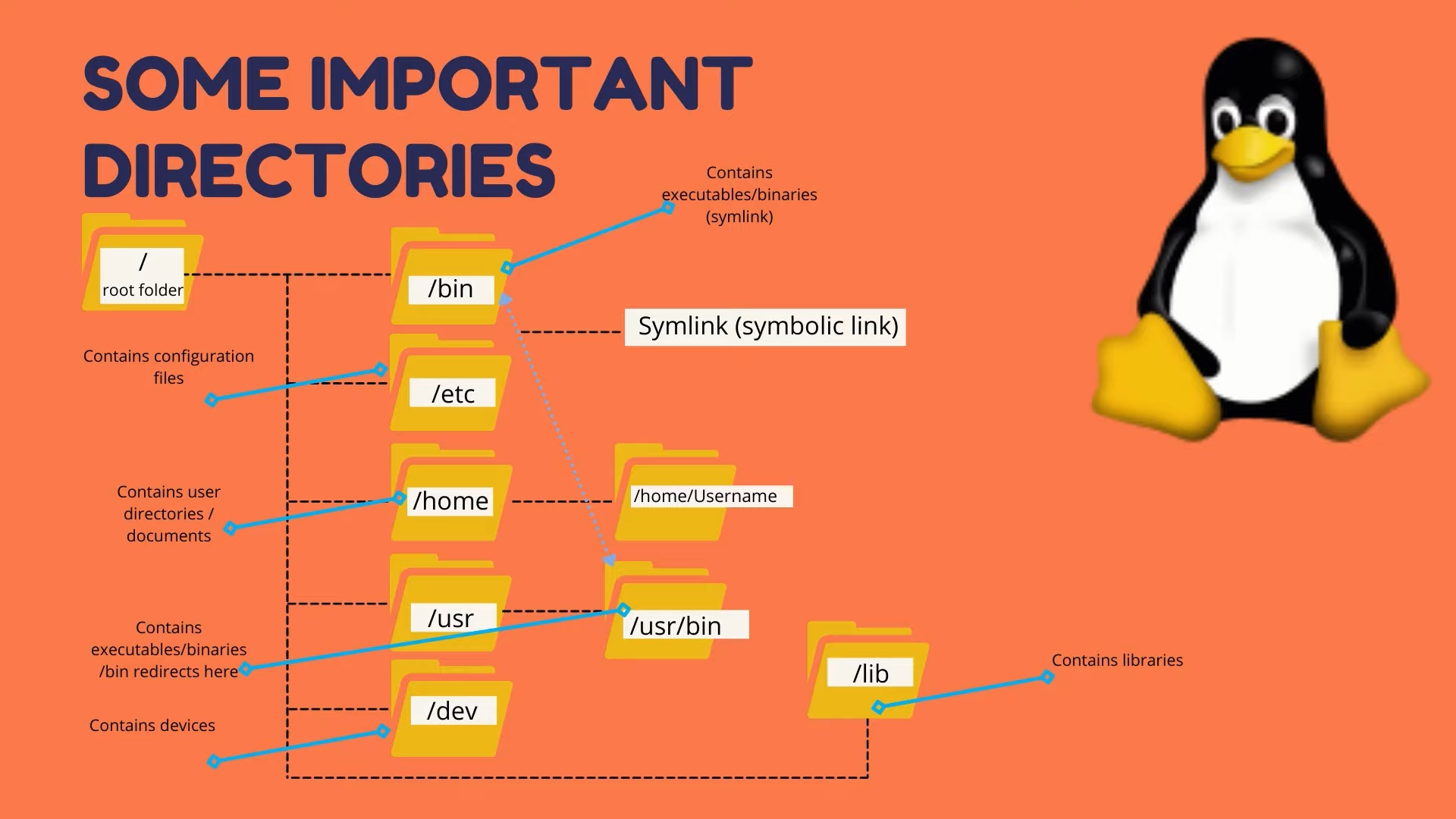
Linux File system
pwd
ls
cd Doc
touch testfile
mkdir testdir
cp testfile testdir#copy
cp testfile testdir/testfile2
cp testfile /home/specificpath
cp testfile ../testfile5#current path
rm restfile
rm -r testdir
rm *
vim testfile.txt


man ls#list manual
ls --help

find Documents
ls | grep Doc

ls >> output.txt
cat output.txt

echo "hello world"
echo "hello world" | >> output.txt
tail output.txt
head output.txt
Shell variables
echo $USER

alias showuser='echo $USER'
showuser
export linuxcourse='for beginners'
echo $linuxcourse
ls -a
vim .bashrc
# Then you can set the variable pernamently
# This is the way to set environment variables
Basic Commond Line
Linux Tutorial - Basic Command Line
pwd
ls -a
ls -l
mkdir dir1
mkdir dir2
cd dir1
pwd
cd ..
cd /
ls
cd
cd ~
clear

touch file1.txt
cp file dir
rm file
rm -r dir

which mongod#find the location
history

clear

sudo
ifconfig
iwconfig
ping google.com

uname -a

blkid

top

df
ls USB

sudo apt-get install...
A basic shell script
#!/bin/bash
#tell the interpreter
Shell Variable
这一部分我直接用的这里
啊看了半天我发现我最喜欢这个资料https://learnxinyminutes.com/docs/bash/
其他一些
./shell.sh->shell.sh
需要修改path变量
一个是把当前路径加进去
export PATH="$PWD:$PATH"另一种方法是把命令安装到系统的文件夹里
通常是放在usr/local/bin
一个是直接cp,但是需要每次更新后链接过去
另一个方式是链接的方式,相当于创建快捷方式
ln -s $PWD/topc /usr/local/bin/#y常用命令
declare
cat
cut
sort
uniq
sed+正则表达式
ctrl R
grep
awk
Bash返回值
bash shell的if语句会运行if后面的那个命令。如果该命令的退出状态码是0(该命令成功运行),位于then部分的命令就会被执行。如果该命令的退出状态码是其他值,then部分的命令就不会被执行。 fi语句用来表示if-then语句到此结束。
bash shell会依次执行if语句,只有第一个返回退出状态码0的语句中的then部分会被执行
shell脚本会从上往下依次匹配if后面为0或真的语句,然后执行then之后的command。
所以如果不加exit 1的话,依然会匹配到后面的child command
加了exit 1之后会在这里跳出bash脚本,不会再对child command进行匹配
Shift 与$1
$#是所有参数的个数
$0是脚本的名字
$1是第一个参数
$2是第二个参数
依此类推
$@是所有参数
Shift:让参数变量偏移一次 Shift n:让参数变量偏移n次 # 一些其他资料 语法速成 [Learn X=bash in Y minutes](https://learnxinyminutes.com/docs/bash/) 一本中文速成手册电子书:[Linux工具快速教程](https://linuxtools-rst.readthedocs.io/zh_CN/latest/base/index.html),如有需要,可以学习一下章节: Linux基础 1. [学会使用命令帮助](https://linuxtools-rst.readthedocs.io/zh_CN/latest/base/01_use_man.html) 2. [文件及目录管理](https://linuxtools-rst.readthedocs.io/zh_CN/latest/base/02_file_manage.html) 3. [文本处理](https://linuxtools-rst.readthedocs.io/zh_CN/latest/base/03_text_processing.html) 4. [用户管理工具](https://linuxtools-rst.readthedocs.io/zh_CN/latest/base/08_user_manage.html) 知乎上的一个文章,里面有很多推荐资源 [学习Linux有没有比《鸟哥的Linux私房菜》更好的书?](https://www.zhihu.com/question/30328004) 一个很务实系列视频教程,适合平时用碎片时间在手机上学习 [2021年最新linux极速入门教程](https://www.ixigua.com/6912756486275858948) 想了解一些关于编写 Shell 脚本的规范?看这个就行 [Google Shell Style Guide](https://google.github.io/styleguide/shellguide.html) 如果学习过程中有什么复杂命令不太懂,让 ta 先给你解释解释。 [explainshell.com - match command-line arguments to their help text](https://explainshell.com/) 给初学者的忠告 [Beginner Mistakes](https://wiki.bash-hackers.org/scripting/newbie_traps) # The missing semester of CS Lecuture 1 只记了一部分我不熟悉的 redirection ```shell $echo hello > hello.txt# print hello to hello. $cat hello.txt hello $cat < hello.txt hello $cat < hello.txt > hello2.txt $cat hello2.txt hello ```